USB Drive Asking to Format? Do Not Click Yes!
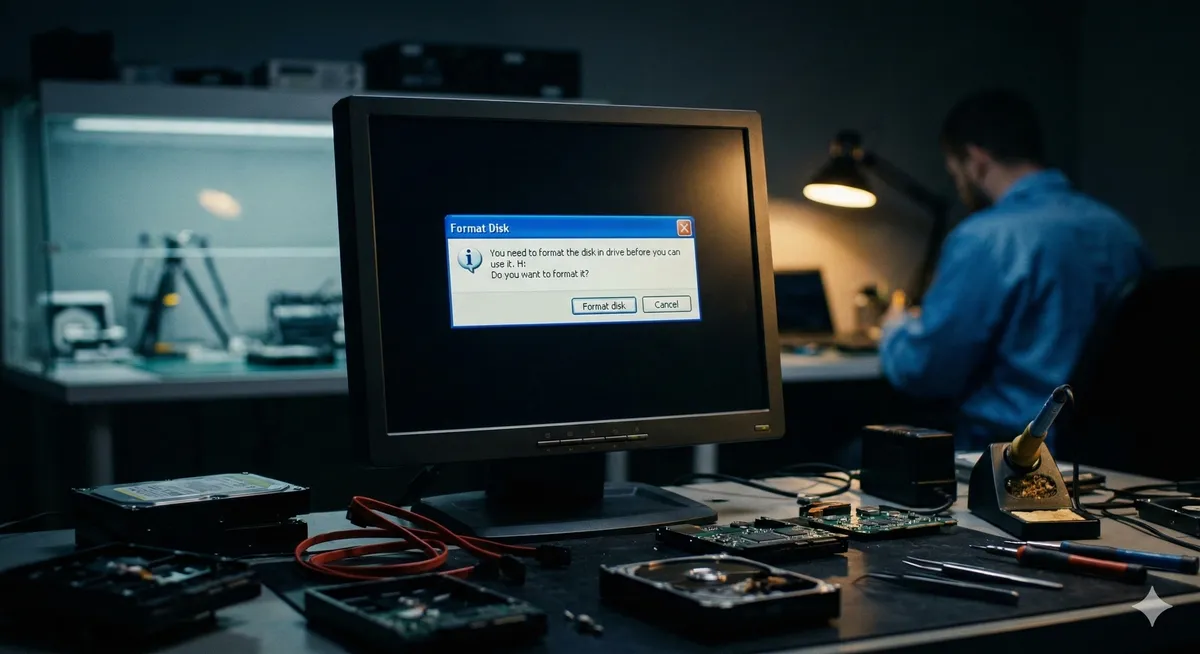
You’re in the middle of work, or you’ve just returned from a long, exhausting photo shoot. You plug in your USB flash drive or memory card to transfer your files, and without any warning, Windows hits you with that dreaded dialog box:
“You need to format the disk in drive X: before you can use it. Do you want to format it?”
At Datacodex, we know your heart probably just sank. Your projects, graduation photos, work contracts, or financial archive is on that drive—and the computer is refusing to acknowledge any of it.
The instinctive response is to click Format to make the message go away. Stop right there and step away from the mouse! That reflexive click is the fastest way to destroy your chances of recovery permanently. In this guide, we’ll explain what happened to your files and how to rescue them safely.
What Does the Format Message Actually Mean?
Think of your flash drive as a massive library full of books (your files). The operating system needs an “index” or file table (File System like FAT32 or exFAT) to know exactly where each book is located.
When you see “You need to format,” it simply means the operating system can’t read the index. The index may be corrupted, or a hardware fault is preventing access. As a result, Windows sees the drive as an unorganized block of raw data (RAW Data).
Here’s the critical issue: Windows doesn’t care emotionally about your photos or projects—it’s programmed solely to make the drive functional. So it suggests the easiest fix: “Let’s wipe the entire library and create a new, empty index.”
Why Did the File System Suddenly Fail?
This didn’t happen randomly. Here are the most common causes:
- Unsafe removal: The number one cause globally. Pulling the drive out of the computer while a write operation is still running in the background instantly corrupts the file table (MFT/FAT).
- Power surges: Connecting the drive to a faulty front USB port or electrical interference sends a voltage spike that damages the internal controller chip.
- Low-quality manufacturing: The market is flooded with cheap or counterfeit flash drives using inferior NAND chips that lose their charge and internal firmware programming after short use.
- Viruses and malware: Some viruses are specifically designed to attack the boot sector and file tables to hide or destroy data.
The Fatal Mistake: What Happens If You Click “Yes” (Format)? 🛑
If you give in to Windows and click Format, you’re giving an explicit command to wipe the old file table entirely and mark every sector containing your original data as “free space available for writing.”
Even a “Quick Format” is catastrophic—especially if you then save any new file, even 1MB, to the drive. That new file will be written directly over your old data (Overwriting), making recovery impossible.
Golden Rule: Press Cancel. Safely remove the drive and keep it in your pocket until you reach the experts.
Hardware Failure (The Software Illusion)
Sometimes the format prompt is merely a symptom of a deeper engineering problem: hardware failure.
Every flash drive contains a controller—the gateway through which all data passes. If this gateway burns out due to electrical damage, the drive sends garbled signals to the computer, appearing as 0 Bytes or RAW.
Here’s a critical fact most people don’t know: Free recovery software (like Recuva and others) will not help you in this scenario. These tools are designed for logical-level searching only and cannot bypass a burned controller to reach your data. In fact, leaving a damaged drive connected to the computer and stressing it with scan software can cause it to overheat and permanently destroy the memory chip itself.
The Professional Solution: How Datacodex Recovers Your Data
As the specialized data recovery lab in Saudi Arabia, we don’t try to “fix” the flash drive to make it work again—we focus all our engineering effort on extracting the data from it safely. At Datacodex, we follow these steps:
- Engineering-grade diagnostics with PC-3000 Flash: We work with the flash drive completely outside the Windows environment. In logical failure cases, we rebuild the internal translator and perform raw recovery to extract your photos and files intact.
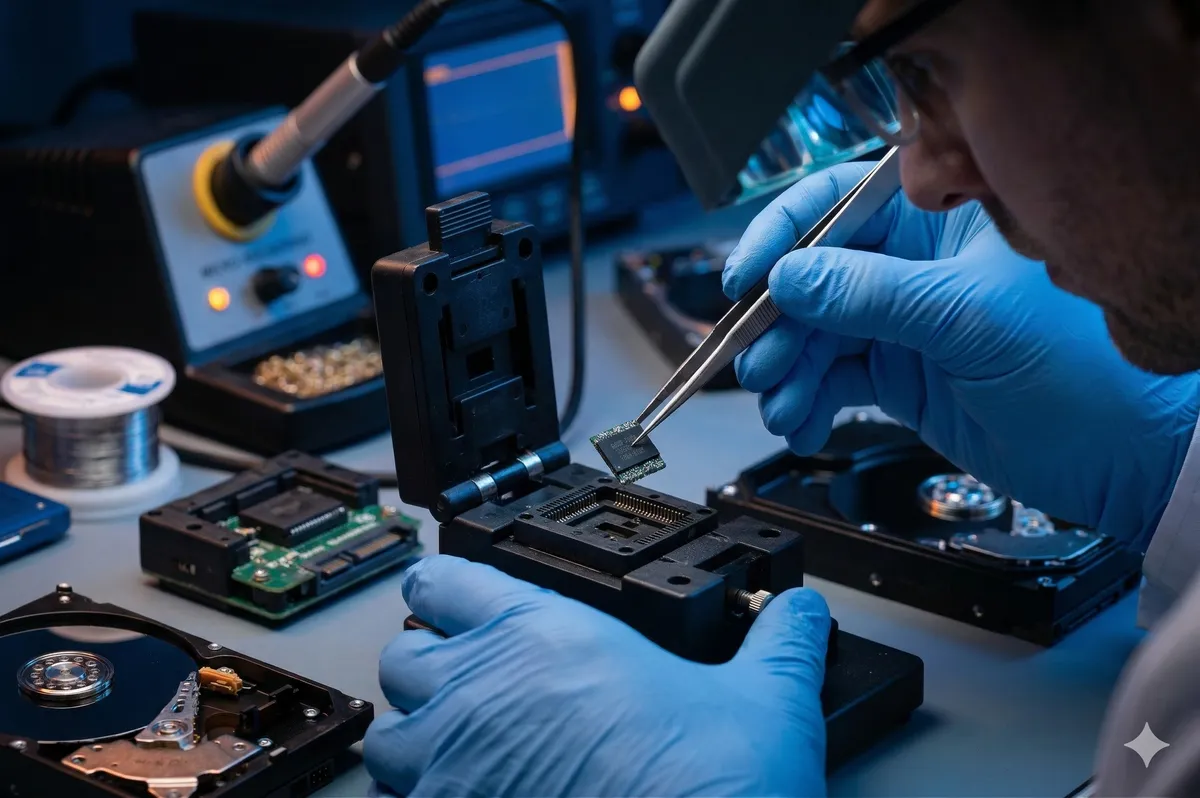
- Direct chip reading (Chip-Off Recovery): In cases where the board or controller is dead, we perform a precise surgical operation—removing the NAND memory chip using micro-soldering equipment, then reading the raw data directly from the chip, completely bypassing the burned controller.
- Decryption and data reconstruction: Data extracted directly from the chip is scrambled. We use advanced algorithms (XOR Descrambling) to decode and reassemble the fragmented data into your original files like solving a puzzle.
Key Takeaway
The “You need to format” message is a distress signal from your flash drive that it’s lost its map to your files. Remember: the operating system is not on your data’s side in this moment, and following its instructions will lead to certain disaster.
Stopping all random attempts immediately is the smartest decision you can make. At Datacodex, we’re always ready to provide a precise technical assessment and use the latest engineering techniques to rescue your memories and work, returning them to you with complete safety.